How do I get a clean white background for marketplace photos?
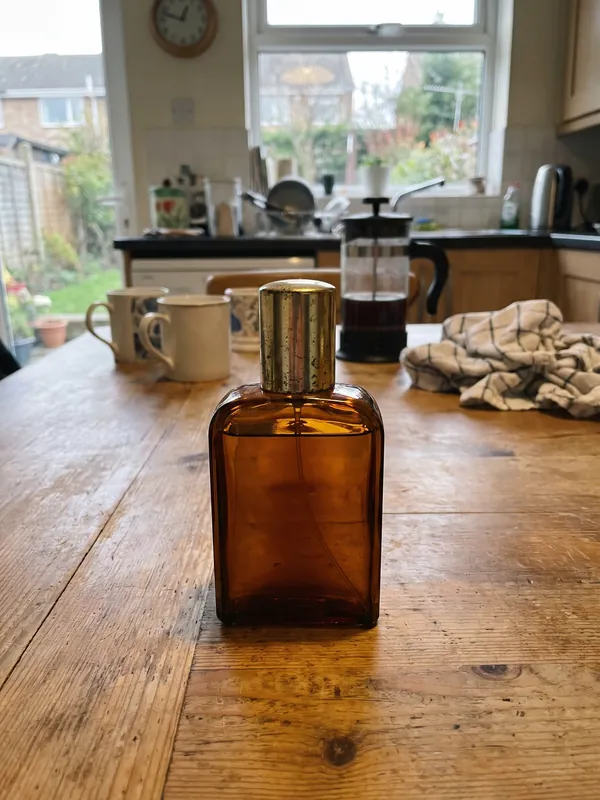
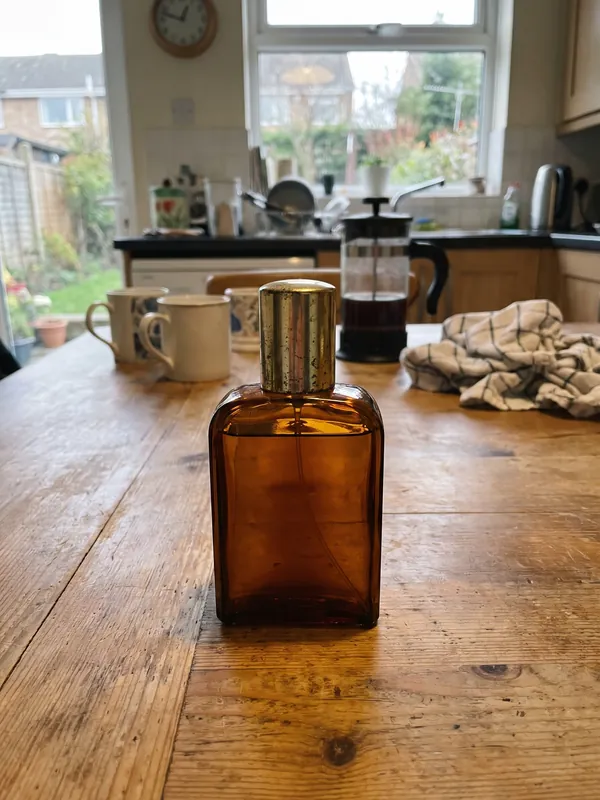
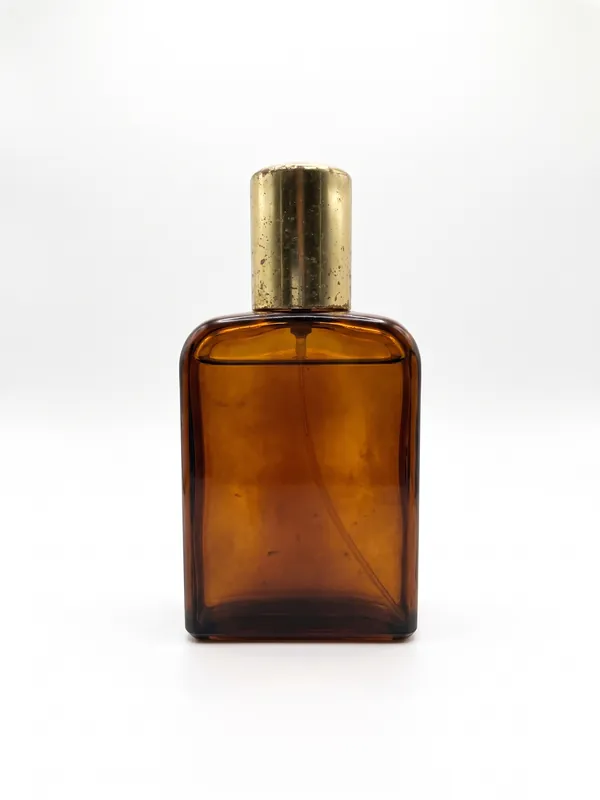
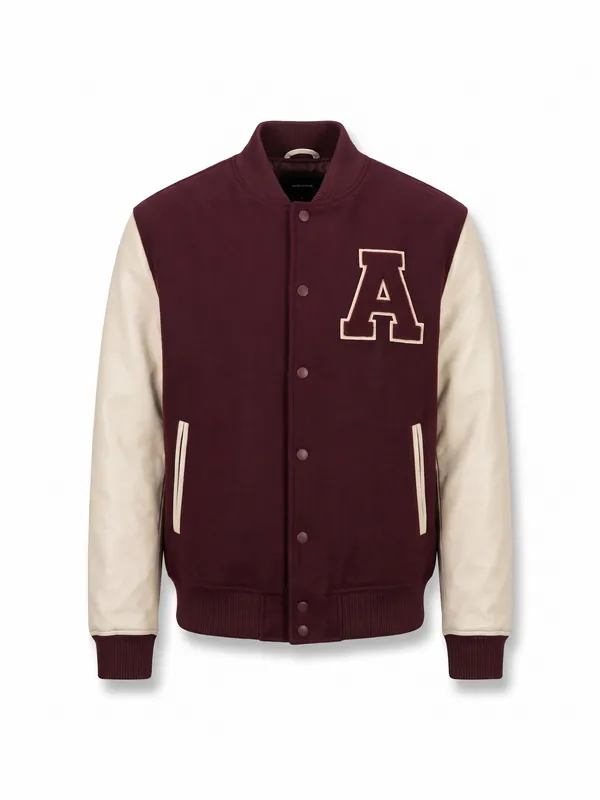
Add your product photos to White Background and press Run. Every photo comes back on a clean white studio background, and several photos go in one run. The product itself is not changed.
Key takeaways
Several photos go in one run, and each gets its own result.
The product stays as it is; only what is behind it changes.
Check the edges of fine details such as hair, fur, glass and straps.
What you need
1
Your product photos, in focus, with the whole product in frame
Step by step
01
Add the photos
Pick every photo you want cleaned. They can have different backgrounds.
02
Run White Background
Each photo comes back on a clean white studio background, ready for a shop.
03
Check the edges
Look closely at glass, hair, fur and thin straps, where an edge is hardest to keep.
04
Fit the shape the shop asks for
Crop to Shape puts the photo in another shape, cropped around the product. Upscale makes it larger and sharper.
What if I need a lifestyle scene, not white?
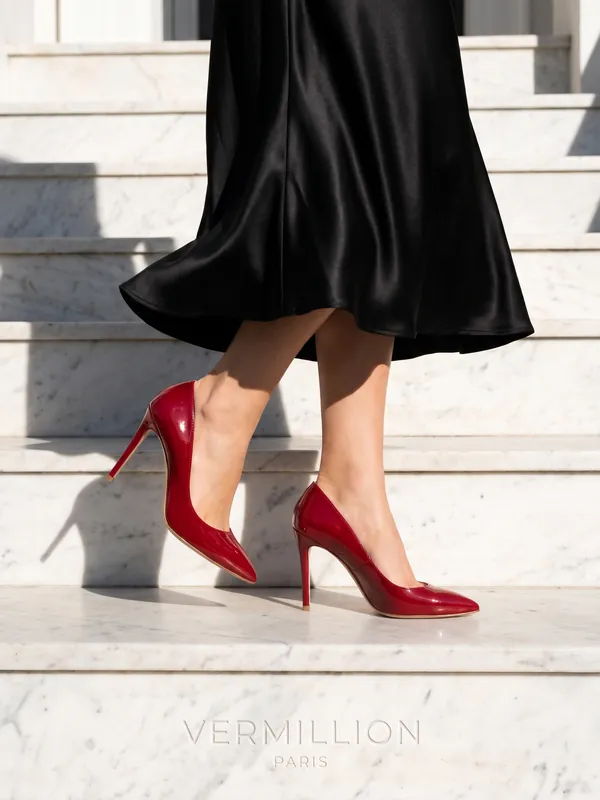
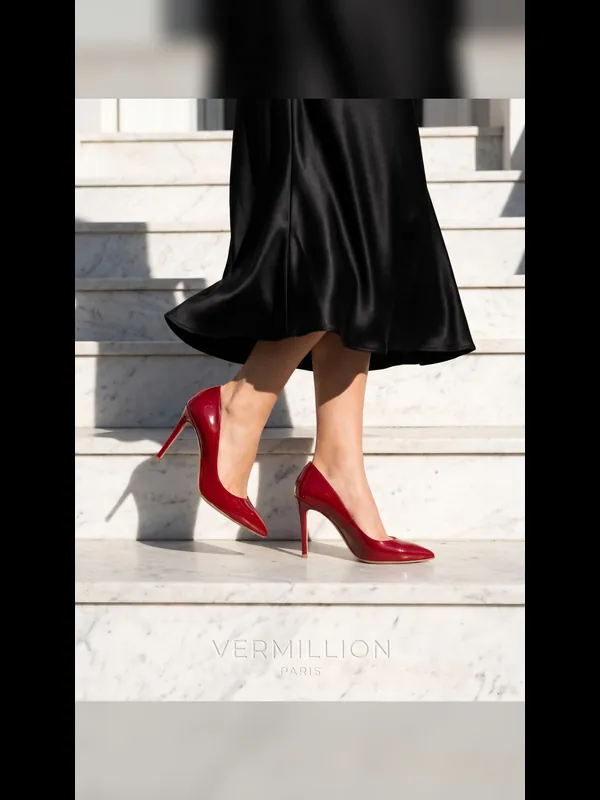
Use New Background and describe the place: a marble counter, a wooden table by a window. The same product moves to that place.
What if the clothes are on a person?
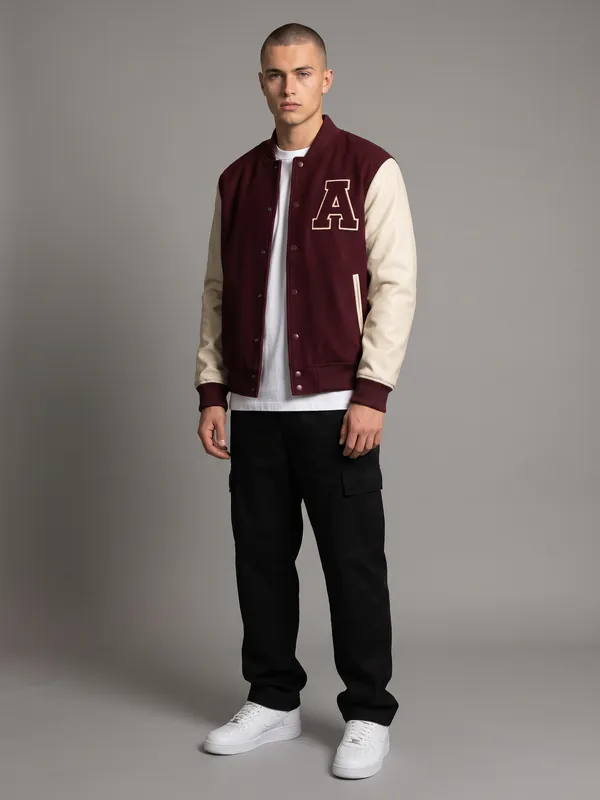
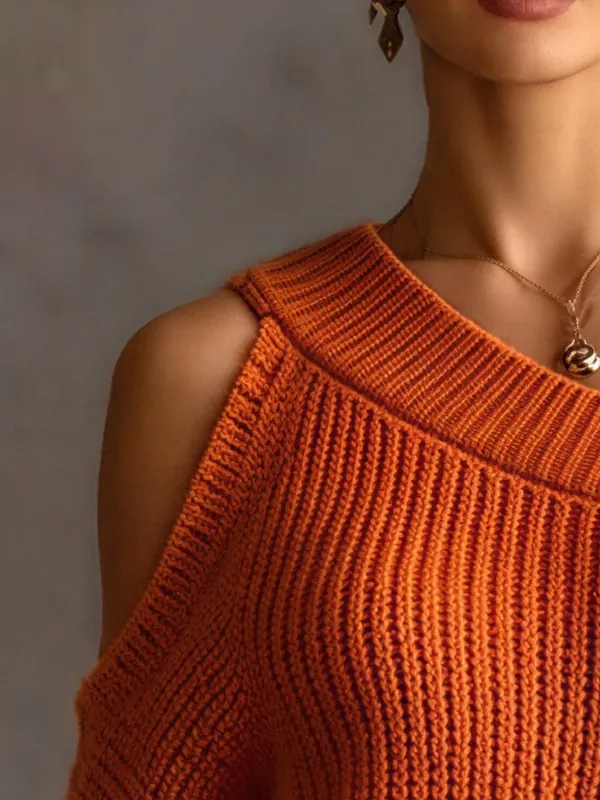
Garment Cut-out takes the clothes from a photo of a person and shows them alone on white.