
When to Upscale a Photo, and When It Will Not Help
How many pixels you really need for marketplaces, screens and print, what an AI upscaler can and cannot fix, and the right order to edit a photo.
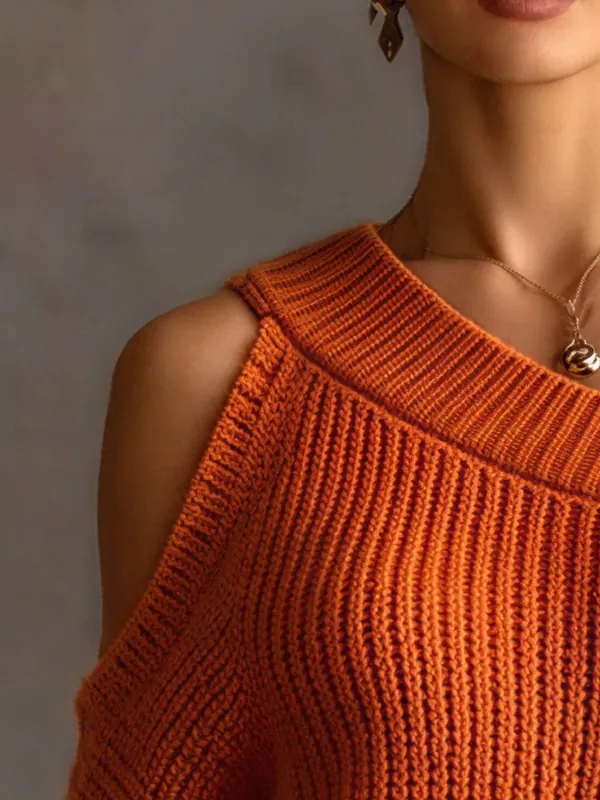
"Make it 4K" is often asked for when it is not needed, and skipped when it is. An upscaler is a simple tool with a narrow job: it makes a picture larger and sharpens it on the way. Knowing how many pixels a job needs tells you whether to use it.
How many pixels you need
| Where the picture goes | Long side you need |
|---|---|
| Instagram post or story | 1,080 px wide is enough |
| Shop page with zoom | 2,000 px or more |
| Marketplace listing with zoom | At least 1,000 px, 2,000 px is safer |
| Full-screen on a laptop | About 2,500 px |
| Full-screen on a 4K display | 3,840 px |
| Print, A4 page | About 3,500 px |
| Print, A3 poster held in the hand | About 5,000 px |
| Large poster seen from across a room | 4K is usually enough |
Print is where people get caught. Print is measured in dots per inch, and 300 per inch is the standard for something held in the hand. To find the pixels you need, multiply the size in inches by 300. An A4 page is about 8.3 by 11.7 inches, so about 2,480 by 3,508 pixels.
A 4K picture, 3,840 pixels on its long side, prints sharp at about 32 cm (13 inches) at that quality. Bigger prints are looked at from further away, so they need fewer dots per inch. A poster on a wall at 150 per inch looks fine, which lets the same 4K file cover about 65 cm.
What an upscaler does
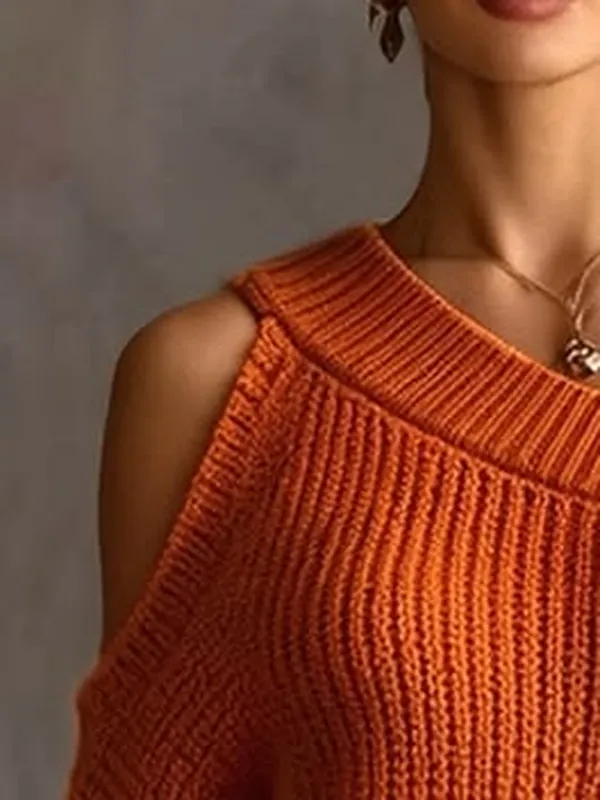
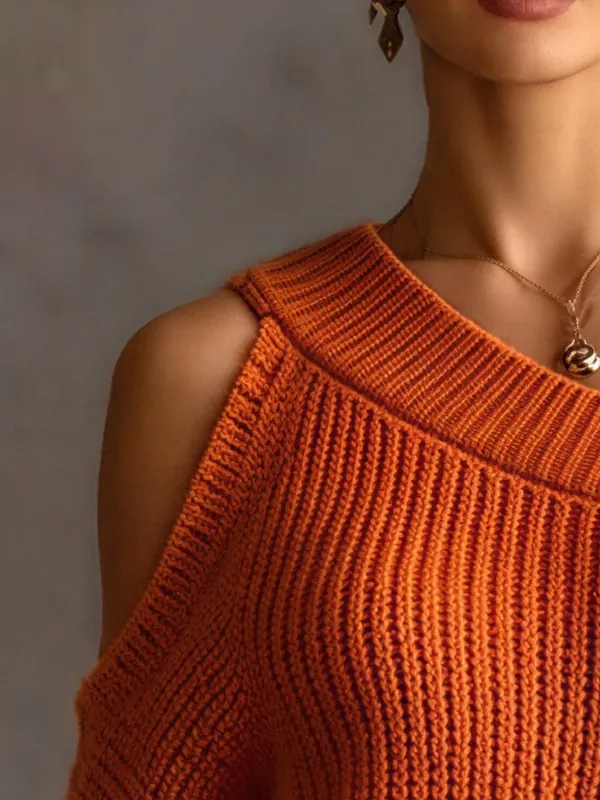
It makes a larger copy and rebuilds edges and texture so the result is not just a stretched, soft version of the original. In Aiphoria, Upscale gives a larger, sharper copy of a photo, up to 4K.
It is good at:
- photos that are sharp but small
- AI-made pictures that need more size before an ad or a print
- old product photos that a marketplace now rejects as too small
- fabric, skin, wood and other natural texture
| Small and soft | Larger and sharper |
|---|---|
 |  |
What it cannot do
An upscaler does not know what was in front of the camera. It makes a good guess. So it cannot:
- Fix blur. A photo that is out of focus or shaken becomes a larger blurry photo.
- Read text that is not there. Small print that was a smudge stays a smudge, or turns into letters that look real and say nothing.
- Recover a heavy crop. A face that was sixty pixels wide will come back as a plausible face, not necessarily the right one.
- Undo heavy compression. A picture saved many times as a low-quality JPEG has blocks baked in.
If the source is bad, taking the photo again beats any tool.
Three things to check after upscaling
Look at the result at full size, not fitted to the screen:
- Text and logos. Every letter, against the original.
- Faces. Eyes and teeth are where an upscaler tends to invent.
- Fine patterns. Knit, mesh, lace and thin stripes can turn into a different pattern.
If any of these is wrong, use a smaller size or go back to a better source.
Do things in the right order
Upscaling goes near the end. Edits made on a small picture are quicker and blend better, and enlarging an edited picture sharpens everything evenly.
- Fix the content: remove an object, change the background, relight.
- Fix the colour: Match Colours if an edit moved it.
- Upscale.
- Crop to each shape: Crop to Shape for a different cut, or Reframe when the scene has to be continued, not cropped.
- Add words and logo last, so they stay crisp: Add Words, Add Logo.
Text added before upscaling gets redrawn with the rest of the picture and can come out soft. Add it after.
Many photos at once
For a catalogue, do not upscale one by one. Large for print takes every photo you pick and makes each one large and sharp in one run. Large try-on photo does a try-on and then enlarges it, for when the picture is going on a poster or in a window.
Let an agent do it for you
You do not have to press every button yourself. The order of the steps matters here, and an agent keeps to it for every photo.
In Aiphoria. Open Workflows & Tools and switch on the Agent. Say what you want in plain words, for example:
Take these ten photos. Remove the price sticker where there is one, put the colours back to the original, make each one large enough for an A4 print, then give me a square copy of each.
The Agent writes the workflow step by step. You read the plan and see what it will cost before anything runs, change a step if you want, and press Run. Save the workflow and next week it is one click.
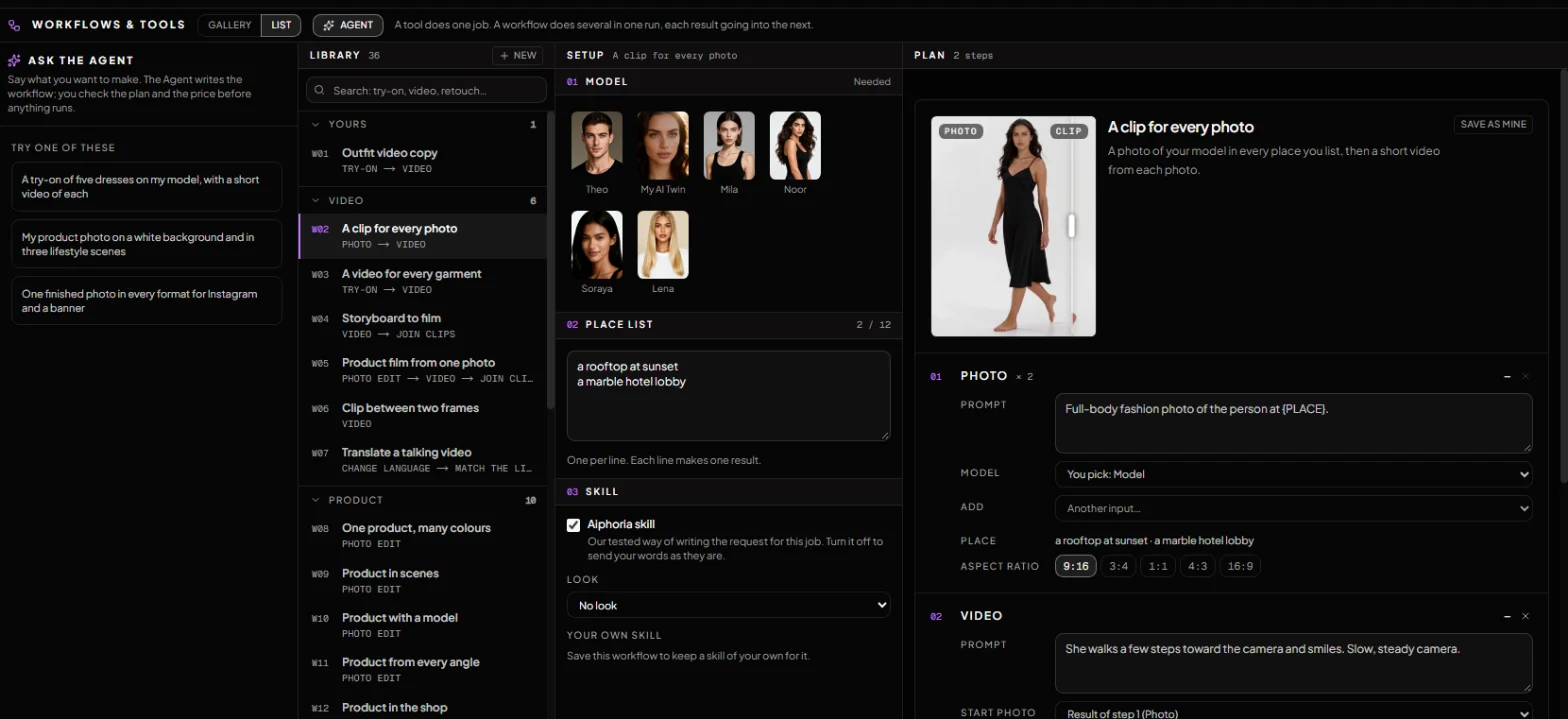
The Agent turns one sentence into a plan you can check before it runs.
In Claude or ChatGPT. Add the Aiphoria MCP connector once, then ask in the chat you already use. The assistant uploads your photo, runs the same tools and workflows, and gives you the links to the results. Setup takes a minute: Claude or ChatGPT.
Skills the agent uses for this job: Large for print, Large try-on photo, One photo, every format.
When not to bother
- The picture is only going on social media. 1,080 pixels is already enough, and the app will shrink anything bigger.
- The picture is already larger than the place it goes.
- The source is blurry. Reshoot.
File size matters too. A 4K picture that is not needed makes a shop page slower, and a slow page loses buyers. Use the size the job needs.
The tools are together on the image upscaler page.